 9ura00
How to use Sheet Widget — Google Sheets on your iPhone Home Screen
Sheet Widget turns a selected range from Google Sheets into an iPhone Home Screen widget. It preserves formatting such as borders, background colors, text colors, bold text, and merged cells.
It is useful for figures you check throughout the day: a household budget, a savings goal, sales or KPIs, inventory, shifts, or a training log. This guide covers the basic setup.
A small example to try first
Create a spreadsheet with a tab named Demo. Enter the following fictional practice data in A1:C3. You do not need a formula for this example.
| Item | Budget | Spent |
|---|---|---|
| Food | 40000 | 1280 |
| Daily supplies | 8000 | 640 |
Select Demo and A1:C3 in step 2, choose Medium, and save. The expected result is one header row and two data rows. If the widget shows another sheet or blank cells, compare the file, tab and range with this example before expanding it.
1. Sign in with Google
Open the app and sign in with your Google Account.
Sheet Widget uses the file-specific drive.file permission rather than permission to read your entire Google Drive. Select the spreadsheet in the file picker to grant the app access. You do not need to publish the sheet to the web or create a sharing link. How this works (Japanese)
2. Choose a range
- Tap + and choose a spreadsheet in Google’s file picker.
- Choose a sheet (tab).
- Enter
A1:C3for the practice table above. For your own table, select or enter the range containing the cells you want to display. - Choose a size available on your device, check the preview, and save the widget configuration.
A large range in a small widget makes the text smaller. Start with a compact range containing just the information you need.
3. Add the widget to your Home Screen
- Touch and hold an empty area of the Home Screen.
- Tap +, or Edit → Add Widget.
- Search for Sheet Widget and add a widget in the same size you chose in step 2.
- Touch and hold the widget, choose Edit Widget, and select the configuration you saved.
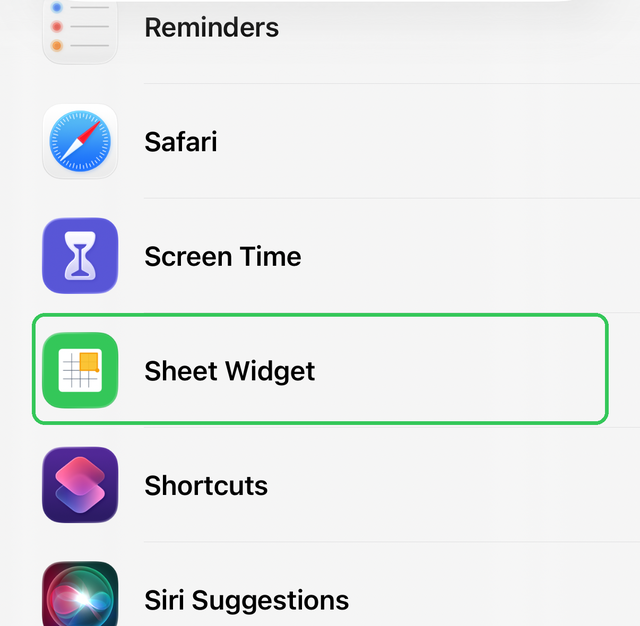
This is the English image used in the app’s own widget-addition guide. Saving a configuration in the app and selecting it in Edit Widget are separate steps. If the widget shows the wrong data, open Edit Widget and check the selected configuration and size.
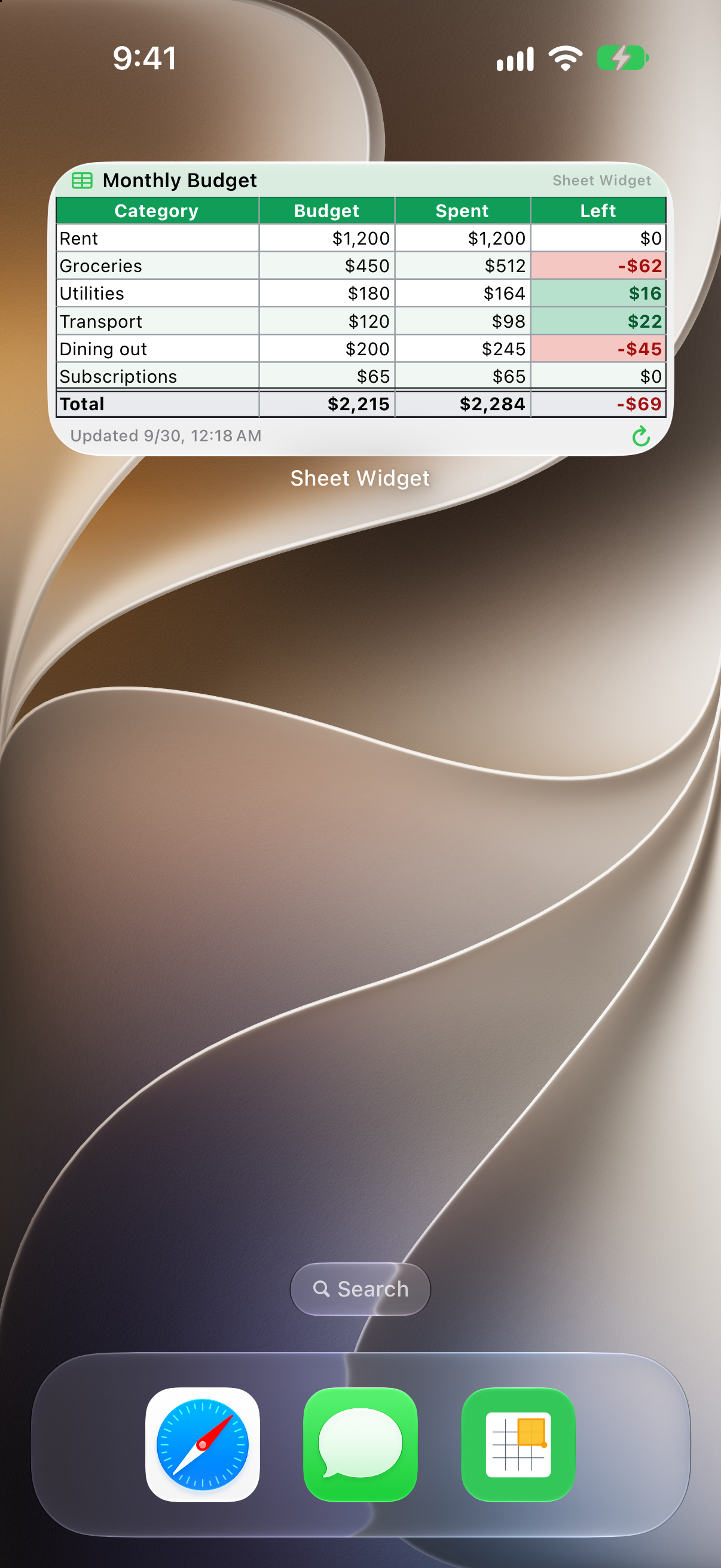
This saved Home Screen demo uses a different table and dollar amounts. It illustrates the completed widget, not the practice values above or a real household’s finances.
Choose a widget size
| Size | Good for |
|---|---|
| Small | A few figures, such as the amount remaining toward a goal |
| Medium | Wide tables with a few rows and columns |
| Large | A weekly or monthly table |
| Extra Large (iOS 27 or later) | A Home Screen page of content, such as a larger table or chart |
Extra Large is available on iPhone with iOS 27 or later. About Extra Large widgets (Japanese)
When does the widget refresh?
iOS manages automatic updates. The app prepares timeline entries at 15-minute intervals, but this does not guarantee a new data fetch every 15 minutes or an update within a fixed time. Changes to the spreadsheet may take time to appear.
Pro includes a button to request a refresh. Network or authentication errors can prevent the update, so check the displayed update time.
Free and Pro
| Feature | Free | Pro |
|---|---|---|
| Widget configurations | 1 | Unlimited |
| Sizes | Small, Medium, Large, Extra Large | Small, Medium, Large, Extra Large |
| Formatting, including borders, colors, and merged cells | Yes | Yes |
| Layout that preserves cell proportions | Yes | Yes |
| Charts, including line, bar, and pie charts | No | Yes |
| Notifications when values or formatting change | No | Yes |
| Multiple Google Accounts | No | Yes |
| Tap a cell to copy its value | No | Yes |
| Theme and background colors | No | Yes |
| Widget refresh button | No | Yes |
| Remove the logo watermark | No | Yes |
Pro is available as a monthly subscription, an annual subscription, or a one-time purchase. Check the App Store purchase confirmation for current prices and trial eligibility.
Troubleshooting
- The sheet cannot be displayed: The Google Account signed in to the app may differ from the account used in the file picker. Tap + and select the file again using the same account. More details (Japanese)
- The widget is hard to read in Tinted or Clear appearance: With these Home Screen appearances, the widget does not fill in background colors. Why this happens (Japanese)
What was checked
The setup and saving steps were checked against the saved app implementation as of October 16, 2026. The pictures are existing app-guide and demo assets. Their exact capture-time app and OS versions are not asserted; menus may differ on your device.
Privacy
Spreadsheet data is fetched directly from Google APIs on your device, without a developer-operated data relay. OAuth tokens are stored in the device Keychain with access shared by the app and widget. Widget settings and cached sheet data use the App Group storage. Optional iCloud sync transfers widget settings, not spreadsheet data or OAuth tokens. See the Sheet Widget privacy policy.